
Free AI summary of this YouTube video by SumTube
iPhone Users: Your Phone Is Always Listening (Turn This Off Immediately!)
TL;DR
This video walks through key iOS settings that allow the iPhone or individual applications to constantly listen to your voice and surroundings. It provides step-by-step instructions on disabling background microphone access, Siri listening, dictation, sound recognition, and analytics data sharing to maximize personal privacy.

Key takeaways
- 24:32The orange dot in the top-right corner of the iPhone status bar indicates that an app or system process is actively accessing the microphone
- 8:06Apple collect audio and motion analytics for features like handwashing and Siri improvements, which can be disabled in Privacy settings
- 2:54Accessibility features like Sound Recognition, Voice Control, and Vocal Shortcuts run constant background microphone monitoring when enabled
Tap to enlarge
Most valuable section
For whom
iPhone users concerned about background listening, targeted ad tracking, and general mobile privacy
What The Orange Dot Means24:32
It explains the real-time visual indicator Apple uses to alert you whenever an app is actively listening through your microphone.
Detailed summary
1. Stop Siri From Listening
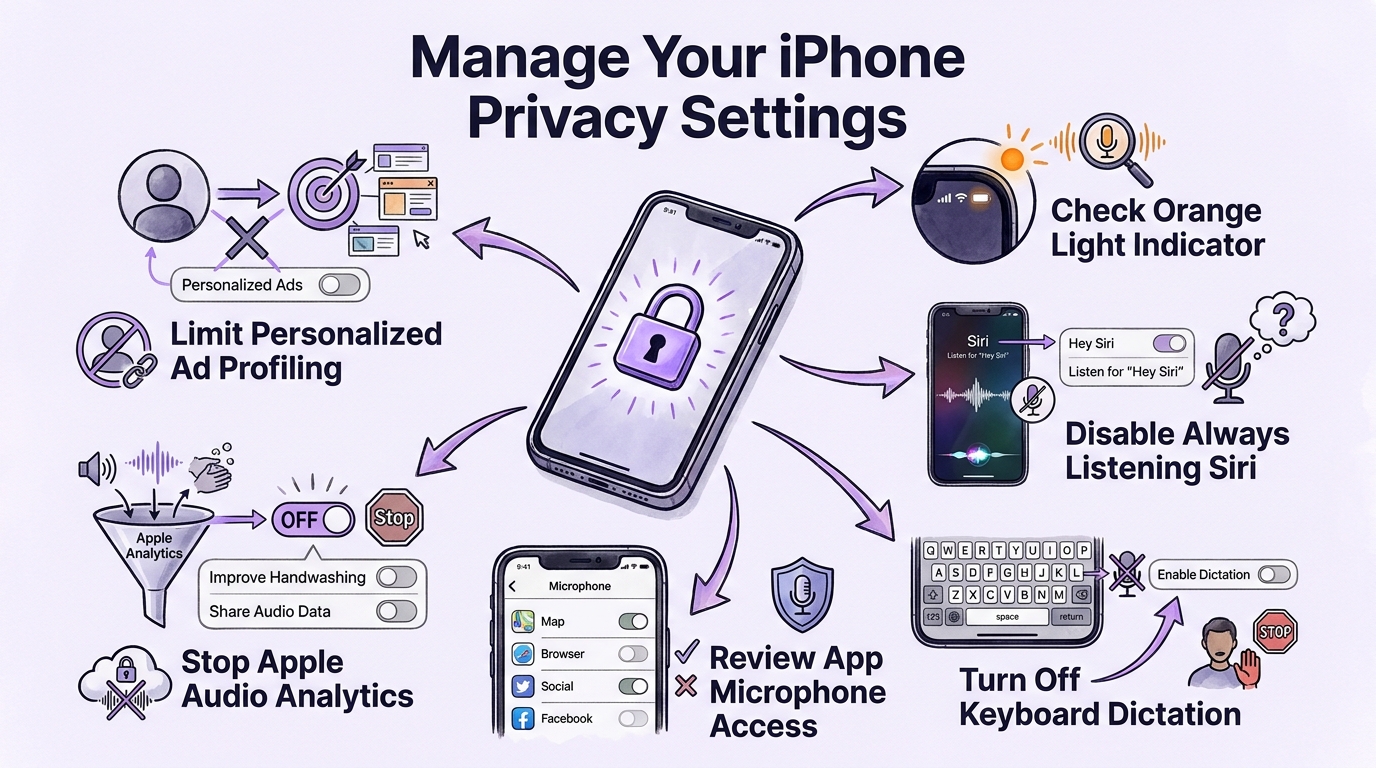
0:00The video begins by explaining how casual conversations can trigger targeted advertisements on social media platforms like Facebook and Instagram. To stop your iPhone from listening for wake words, navigate to Settings > Siri > Requests and set the option to Off. This prevents the phone from continuously listening for 'Siri' or 'Hey Siri' while still allowing manual activation via the side button.
You can also restrict Siri's access to sensitive applications by going to Settings > Siri > Excluded Apps. Adding sensitive apps such as banking or healthcare software ensures Siri cannot read, search, or offer suggestions based on data within those applications.
2. Stop Dictation & Accessibility Voice Features
1:53To prevent accidental voice input while typing messages, turn off Dictation by navigating to Settings > General > Keyboard and toggling off 'Enable Dictation'. This eliminates the small microphone icon located at the bottom-right of the iOS keyboard.
Under Settings > Accessibility, several features run background listening services. Disabling 'Voice Control' prevents the phone from listening for system navigation commands, while turning off 'Sound Recognition' and 'Name Recognition' stops the device from monitoring environmental noises like alarms, appliances, or specific spoken names.
3. Disable Live Listen, Vocal Shortcuts & Siri Accessibility
4:20Further accessibility privacy settings include 'Live Listen' under Settings > Accessibility > Audio & Visual. Toggling off Remote Control prevents nearby Apple devices from controlling audio streaming sessions or receiving microphone feeds remotely.
Additionally, turn off 'Vocal Shortcuts' under Accessibility > Speech to stop the iPhone from listening for specific trigger words to mute or take screenshots. In Accessibility > Siri, disable 'Always Listen for Siri' so the device doesn't listen when faced down or covered.
4. Stop App Tracking & Microphone Permissions
6:08To prevent apps from cross-tracking your activity across other apps and websites, go to Settings > Privacy & Security > Tracking and turn off 'Allow Apps to Request to Track'. This limits how companies share user activity for targeted advertising.
Next, navigate to Privacy & Security > Microphone to review every application that has requested microphone access. Toggling off microphone access for unnecessary apps, such as mapping or browser apps, prevents them from listening in the background.
5. Disable Audio Analytics & Personalized Ads
7:12Under Privacy & Security > Analytics & Improvements, Apple collects various usage data, including audio telemetry. Turn off options like 'Improve Handwashing' (which shares audio/motion data from bathrooms) and 'Improve Siri & Apple Intelligence' to keep voice interactions strictly local.
To limit ad profiling, go to Privacy & Security > Apple Advertising and disable 'Personalized Ads'. While this won't reduce the total quantity of ads, it prevents Apple from using your device activity to deliver targeted promotions.
6. Safety Check & Orange Indicator Light
10:00Use the 'Safety Check' feature located in Settings > Privacy & Security to audit which people, apps, and connected devices currently have access to your shared location, photos, notes, and account data. Tapping 'Manage Sharing & Access' allows you to revoke unwanted permissions systematically.
Finally, the video explains the orange dot indicator in the top-right corner of the iPhone display. Swiping down into Control Center reveals which app is actively using the microphone, allowing you to instantly identify and revoke access from apps that are listening without permission.
Questions this video answers
What does the orange dot on the top of the iPhone screen mean?
The orange dot in the status bar indicates that an application or system process is actively using your iPhone's microphone. Swiping down to open Control Center reveals the exact app currently using the mic.
How do I stop Siri from constantly listening to me?
Go to Settings > Siri (or Siri & Search) and set 'Requests' to Off to prevent listening for 'Siri' or 'Hey Siri'. Additionally, check Settings > Accessibility > Siri and turn off 'Always Listen for Siri'.
Does turning off dictation disable the keyboard microphone?
Yes, turning off 'Enable Dictation' under Settings > General > Keyboard removes the microphone icon from the bottom corner of your keyboard, preventing accidental voice transcription while typing.
Why does Apple record audio data during handwashing?
The 'Improve Handwashing' setting shares limited motion and audio data with Apple to help train and refine automatic handwashing detection, but it can be turned off in Analytics & Improvements to maintain bathroom privacy.
Ask a follow-up Premium
About this summary
SumTube AI wrote this recap from the video's words and chapters. Credit and the original belong to Trevor Nace.