
Free AI summary of this YouTube video by SumTube
الحلقة الرابعة من مقرر نظم تشغيل الحاسبات الآلية
TL;DR
This video provides an in-depth lecture on navigating and using the Windows Start menu and File Explorer in Windows 10. The presenter details the main components of the Start menu, user account settings, system options, and File Explorer's tab interfaces. Viewers are guided through practical steps for file management, sharing permissions, layout customization, and understanding file extensions.
Key takeaways
- 4:27The Windows 10 Start menu integrates traditional list views with Metro tiles for streamlined application access
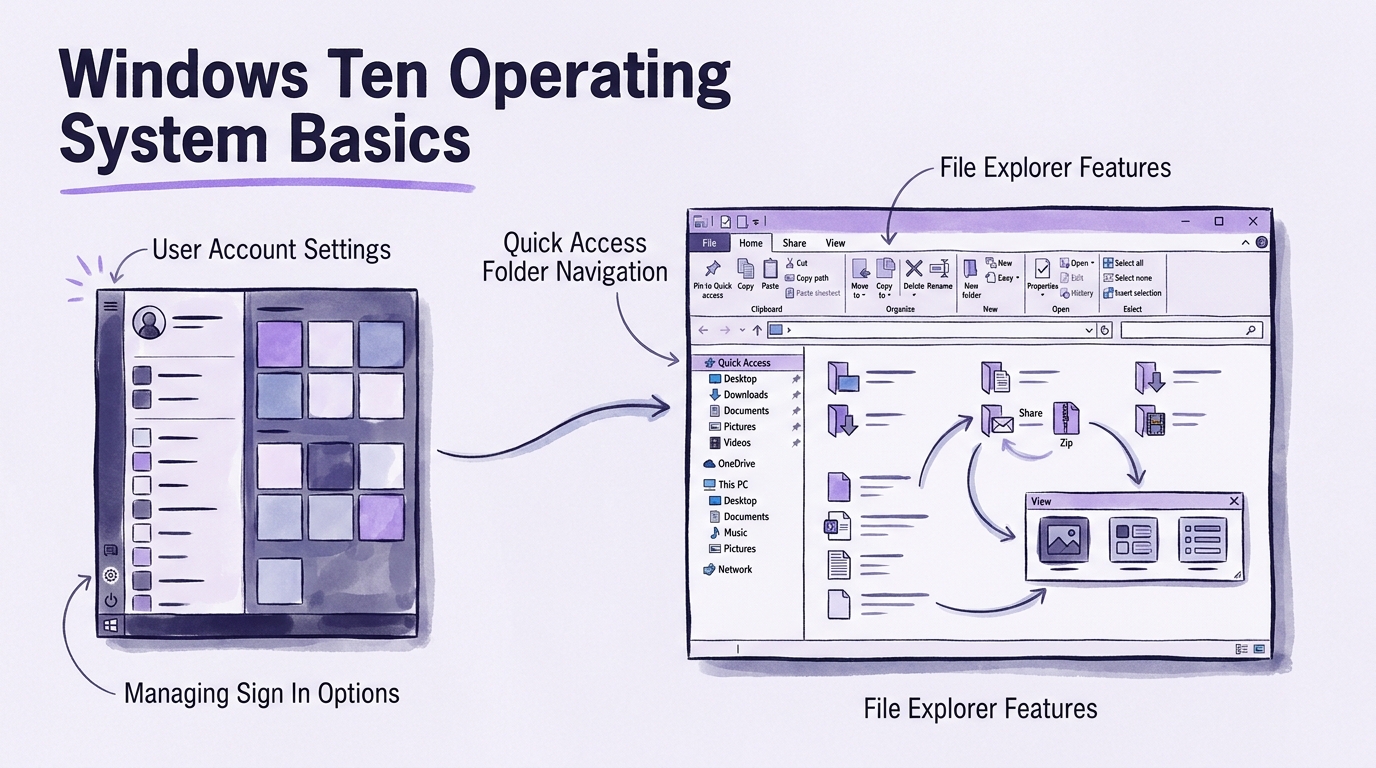
- 7:13User Account Settings allow administrators to manage sign-in options, family permissions, and cross-device synchronization
- 26:40File Explorer provides comprehensive tools across its ribbon tabs (Home, Share, View) to control permissions, organization, and display options
- 52:13File extensions dictate how the operating system handles file types and which default applications open them
Tap to enlarge
Most valuable section
For whom
Students and beginner PC users looking to master file navigation and system settings in Windows 10.
File Explorer Overview & Components26:40
This section thoroughly breaks down the File Explorer interface, explaining how to organize, search, and manage files efficiently using the ribbon menu.
Detailed summary
1. Introduction & Start Menu Overview
0:00The instructor opens the session by welcoming second-year computer science students to their fourth lecture on operating system usage. The focus of this lesson is a detailed examination of the Windows Start menu and its essential functionality.
The presenter reviews the seven primary components of the Start menu introduced in previous sessions. These include user accounts, most used apps, File Explorer, settings, power options, all apps, and the Metro tile view.
2. Detailed Breakdown of the Start Menu
3:46This section walks through the core layout of the Start Menu, comparing Windows 10 to previous iterations like Windows 8. The instructor points out how Windows 10 combines the classic Start menu structure with full-screen Metro elements.
Each menu component is highlighted on screen, explaining how users can quickly launch frequently used applications, access system shortcuts, or power down the system. Key interface elements are demonstrated directly within the presentation slides.
3. User Account Settings & Navigation
7:13The lecture transitions into configuring user accounts. The instructor demonstrates how to open account settings directly from the Start menu or through the Windows Action Center via the Settings app.
Viewers learn about the different methods for customizing account profiles. The instructor demonstrates updating account pictures, linking Microsoft emails, and understanding local administrator privileges versus guest options.
4. Account Options & Synchronization
11:44Continuing within the Account Settings window, the instructor explains sign-in options, family user management, and setting up access for work or school environments. Additional security measures like PIN codes and image passwords are introduced.
The concept of setting synchronization is also covered. The instructor explains how enabling sync allows Windows configurations, themes, and browser preferences to follow a user account across multiple computers.
5. Lock Screen & Sign-Out Options
22:13This topic covers account state management, specifically distinguishing between locking a session and signing out completely. Locking keeps open applications running in the background while requiring a password to resume access.
Signing out terminates the current user session, allowing a different account to log in without rebooting the PC. The instructor illustrates these choices from the Start menu user menu.
6. File Explorer Overview & Components
26:40The presenter moves on to File Explorer, detailing its role as the primary file management tool in Windows. The interface is broken down into seven key structural areas, including the ribbon bar, navigation pane, and quick access list.
A live demonstration shows how File Explorer tracks recently opened files and frequently used folders. The instructor demonstrates pinning important folders to Quick Access and removing clutter from the recent file list.
7. File Explorer Ribbon & Home Tab
34:01This section explores the File Explorer Home tab and its functional command groups: Clipboard, Organize, New, Open, and Select. Each group offers specific actions for file management.
Actions such as copying file paths, moving items to designated locations, creating new folders, and using selection tools (Select All, Invert Selection) are systematically explained and demonstrated.
8. File Explorer Share Tab Features
40:00The instructor examines the Share tab options within File Explorer. Commands for emailing files directly, creating compressed ZIP archives, burning data to optical media, and faxing are presented.
Network sharing permissions are also demonstrated. The presenter shows how to share specific folders with individual network users or set advanced security permissions to prevent unauthorized access.
9. File Explorer View Tab Options
46:12The View tab is highlighted, showing how users can customize layout presentations, pane visibility, and sorting behaviors. View styles ranging from extra-large icons to detailed lists are demonstrated.
The instructor shows how to toggle the Navigation Pane, Preview Pane, and Details Pane. Options for displaying file extensions and hidden items are emphasized as critical tools for file organization.
10. Folder Options & Search Settings
50:00Opening the Folder Options dialog, the instructor walks through advanced file browsing configurations across the General, View, and Search tabs. Users can set folders to open in single or separate windows and alter click behaviors.
Search settings are detailed, showing how indexing and file contents affect search results. Restoring default views is also highlighted for cases where customized settings cause unexpected behaviors.
11. Understanding File Types & Extensions
52:13The final major topic explains file types and extensions (such as .docx, .pdf, .jpg, and .mp3). The instructor explains how file extensions communicate file format details to the operating system to launch appropriate default software.
The session concludes with examples of common extension formats and a brief wrap-up reminding students to practice these navigation and configuration skills in their practical lab sessions.
Questions this video answers
What are the main components of the Windows 10 Start Menu?
The Start menu consists of seven key components: User Accounts, Most Used applications, File Explorer/Documents, Settings, Power options, All Apps list, and Full Screen Metro tiles. Together, these sections give users quick access to their personal files, system configurations, and installed software.
How do you access and manage User Account settings in Windows 10?
User Account settings can be accessed by clicking your profile picture in the Start Menu and selecting 'Change account settings', or through the Action Center via All Settings > Accounts. This area allows you to change profile photos, configure sign-in options like PINs or passwords, set family permissions, and manage sync settings across devices.
What features are included in File Explorer's ribbon tabs?
File Explorer includes several ribbon tabs: Home (for basic file actions like copy, paste, move, and delete), Share (for sending files via email, zipping, or sharing across local networks), and View (for altering layout displays, toggling navigation panes, and showing hidden items or file extensions).
Ask a follow-up Premium
About this summary
SumTube AI wrote this recap from the video's words and chapters. Credit and the original belong to Alaa Dawood.