
Free AI summary of this YouTube video by SumTube
📂 Cómo CREAR un PDF RELLENABLE✔️ Cómo convertir un PDF en FORMULARIO EDITABLE para ALUMNOS y más
TL;DR
This tutorial demonstrates how to transform a standard PDF document into an interactive, fillable form using Adobe Acrobat Pro DC. It covers automatic field detection, manual creation of text fields, checkboxes, drop-down menus, and signature blocks. Additionally, it shows how to format field properties globally and how users can fill and save the completed form using the free Adobe Acrobat Reader.
Key takeaways
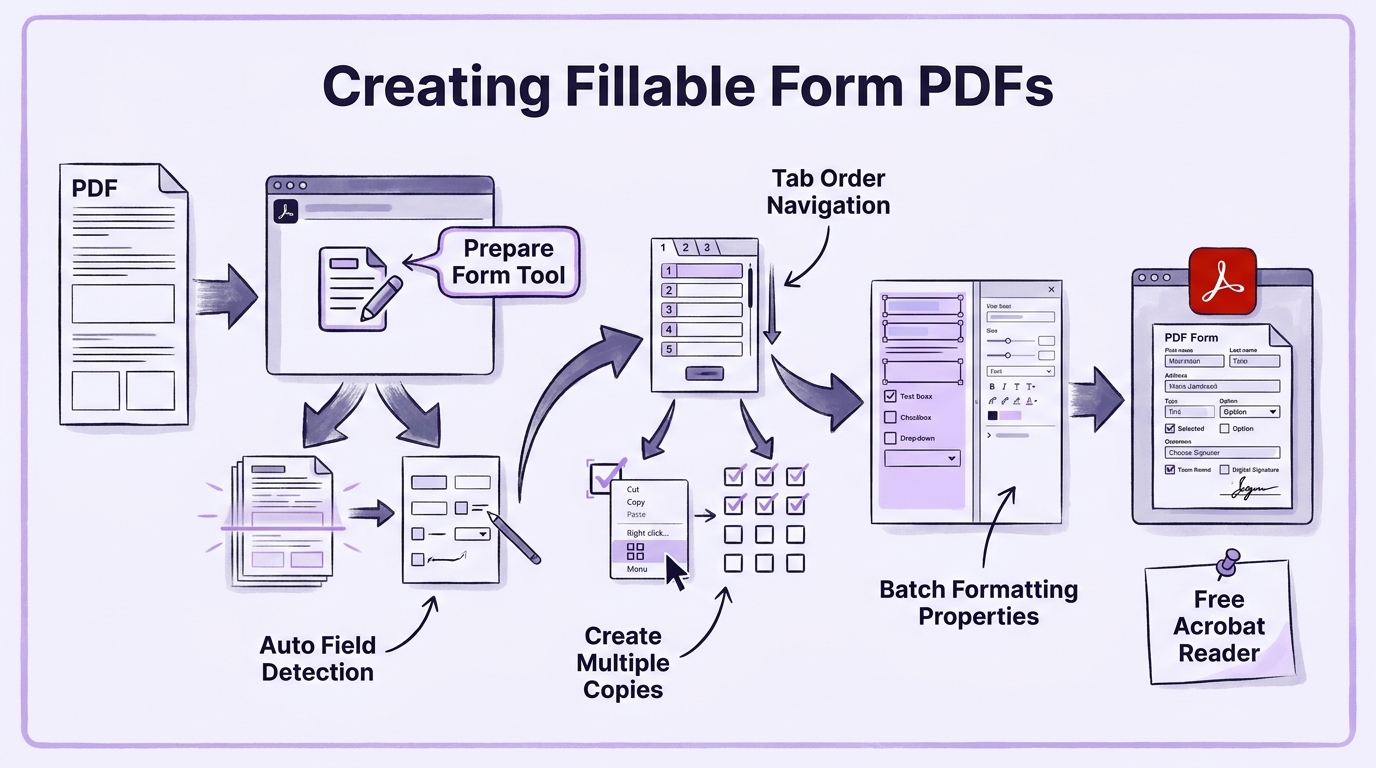
- 2:16Adobe Acrobat Pro DC features an automatic field detection tool that instantly identifies and creates form fields from existing lines and text
- 10:15Duplicating fields via right-click options ('Create Multiple Copies') avoids linked text errors that happen when using standard Ctrl+C/Ctrl+V commands
- 13:24Batch-selecting form fields allows you to update font size, typography, and styling across the entire document simultaneously
- 21:57Created fillable PDFs remain compatible with free PDF readers like Adobe Acrobat Reader, allowing anyone to fill, sign, and save them
Tap to enlarge
Most valuable section
For whom
Designers, educators, and administrative workers looking to create interactive digital forms.
Tools for Field Creation & Form Customization8:25
It offers practical demonstrations of adding text inputs, checkboxes, drop-down lists, and digital signature boxes step-by-step.
Detailed summary
1. Introduction to Fillable PDFs
0:00The tutorial opens with a preview of what will be covered: converting a standard static PDF document into an interactive, fillable form. The presenter demonstrates how end-users can input text into dedicated fields, select checkboxes, choose options from drop-down menus, and apply digital signatures.
Understanding these basic elements helps set up the full workflow for designing user-friendly digital forms that can be easily distributed and collected electronically.
2. Choosing the Right Adobe Program
0:25This section explains the critical distinction between Adobe Acrobat Pro DC and Adobe Acrobat Reader DC. While Acrobat Reader is a free program installed on most computers, it is only capable of reading and filling out forms.
To author or edit interactive form fields, Adobe Acrobat Pro DC is required. The video outlines how the form created in Pro will later be tested and completed using the free Reader application.
3. Preparing Form & Auto Field Detection
1:51After opening the sample PDF inside Adobe Acrobat Pro DC, the presenter navigates to the 'Prepare Form' tool found under the Tools menu. A helpful tip is shared on pinning this tool to the right-hand sidebar for quick access during future editing sessions.
Once the tool is initialized, Acrobat Pro automatically scans the document layout to detect potential form fields. The automated detection creates an initial set of text fields based on existing underlines and labels.
4. Navigation Controls & Tab Ordering
4:16Efficient document navigation is essential when editing complex forms. The tutorial demonstrates quick navigation shortcuts, such as holding the Control key while scrolling the mouse wheel to zoom in, and pressing the spacebar to pan across the canvas.
The video also covers field ordering in the right-side Fields panel. Arranging fields in top-to-down order ensures that users can naturally tab through the inputs in a logical sequence when filling out the form.
5. Adding & Duplicating Text Fields
8:10When automatic detection misses certain areas, text fields must be added manually using the Text Field tool. The presenter demonstrates how to place and resize new inputs to align with the underlying document template.
A crucial tip is highlighted regarding duplication: using standard Ctrl+C and Ctrl+V commands creates linked field duplicates that mirror text input. To prevent this, users should right-click a field and select 'Create Multiple Copies' to generate distinct, independent fields.
6. Batch Formatting Field Appearance
11:50To maintain visual consistency across a form, modifying field properties one by one can be time-consuming. This chapter demonstrates how to edit properties for multiple fields simultaneously.
By clicking and dragging to select all text fields at once, the presenter opens the combined Properties panel. Changes made to font family, text size, and color are instantly applied across all selected fields in a single step.
7. Creating Custom Checkboxes
14:00Checkboxes allow users to select one or multiple options within a group. Using the Check Box tool, the presenter draws a new box and opens its properties to remove default border lines and set the selection symbol to a cross (X).
After setting up the ideal appearance, the checkbox is duplicated into a neat grid using the 'Create Multiple Copies' tool, ensuring uniform sizing and alignment across all survey options.
8. Adding Drop-Down Menus
17:21Drop-down lists are ideal for constraining user choices to a predefined set of responses. This section shows how to draw a drop-down box and populate it with custom options under the Options tab.
The presenter inputs text choices one by one (such as numerical ranges), manages font scaling to fit the box dimensions, and tests the interactive drop-down menu in preview mode.
9. Adding Signature Fields & Saving
20:32The final structural addition to the form is a Digital Signature field, inserted using the Digital Signature tool at the bottom authorization section of the document.
Before saving, the presenter switches to preview mode to clear all test data, ensuring the form is empty for recipient use. The file is then finalized and saved via File > Save As.
10. Testing Form in Adobe Reader
21:51To confirm full functionality, the newly saved interactive PDF is opened inside the free Adobe Acrobat Reader DC application. The video shows a end-user workflow: filling in text fields, selecting options, choosing items from the drop-down menu, and saving the completed file.
The tutorial concludes with a reminder that well-structured PDF forms simplify data collection and provide a seamless digital experience.
Questions this video answers
What is the difference between Adobe Acrobat Pro DC and Adobe Acrobat Reader for forms?
Adobe Acrobat Pro DC is a paid editing tool required to create, structure, and customize interactive form fields. Adobe Acrobat Reader DC is a free application that only allows users to view, fill out, and save completed forms.
Why shouldn't I copy and paste form fields with Ctrl+C and Ctrl+V?
Using Ctrl+C and Ctrl+V creates identical field clones that mirror inputs; typing text in one field will automatically duplicate that same text into all cloned fields. To create unique, independent fields, right-click an existing field and select the option to create multiple copies instead.
How do I change the font style for all fields at once?
Instead of modifying fields individually, switch to edit mode, drag the pointer to select all form fields, right-click, and open 'Properties.' Any appearance changes made in this menu will instantly apply across all selected fields.
Ask a follow-up Premium
About this summary
SumTube AI wrote this recap from the video's words and chapters. Credit and the original belong to Laita Digital.